
Website Maintenance Checklist: Weekly, Monthly and Yearly Tasks
A website maintenance checklist for small businesses: weekly, monthly and yearly tasks, who does each one, what done looks like, and UK vs US backup notes.
Use a website maintenance checklist to keep a small site loading, taking messages, backed up and renewed. The repeating jobs are uptime, forms, backups, updates, security, content and renewals. Hosted builders such as Squarespace and Wix apply their own platform patches. WordPress, and other self-hosted or static sites, need more of the work from you or a freelancer.
This page collects tasks from HubSpot, hosting articles by Bluehost and HostGator, WordPress, the UK's NCSC and ICO, and Google Search Central. The hosting articles also sell maintenance services, so they are used here for task lists, not for product picks. This page does not record a test of any host, plugin or tool.
Working through the list does not make a site compliant with UK GDPR, the Data Protection Act 2018, PCI DSS, HIPAA or Cyber Essentials. It is an editorial checklist. Where a step could take the live site offline, do it on a staging copy or in a separate folder first.
How often should you maintain a website?
The sources agree that some jobs are more frequent than others. Their suggested schedules are not the same:
- HubSpot suggests weekly software updates, daily or weekly backups, weekly form tests, monthly broken-link checks and a yearly plugin audit.
- Bluehost includes weekly backups, updates and spam clean-up, monthly content and speed checks, and yearly renewals and policy reviews.
- HostGator, in an older post from 2021, suggests security updates and backups at least monthly, with form and checkout tests every few months.
The table below is a cautious middle. A busy shop should take the more frequent end of each range. A quiet brochure site can stretch the monthly jobs, not the backup check.
The checklist table
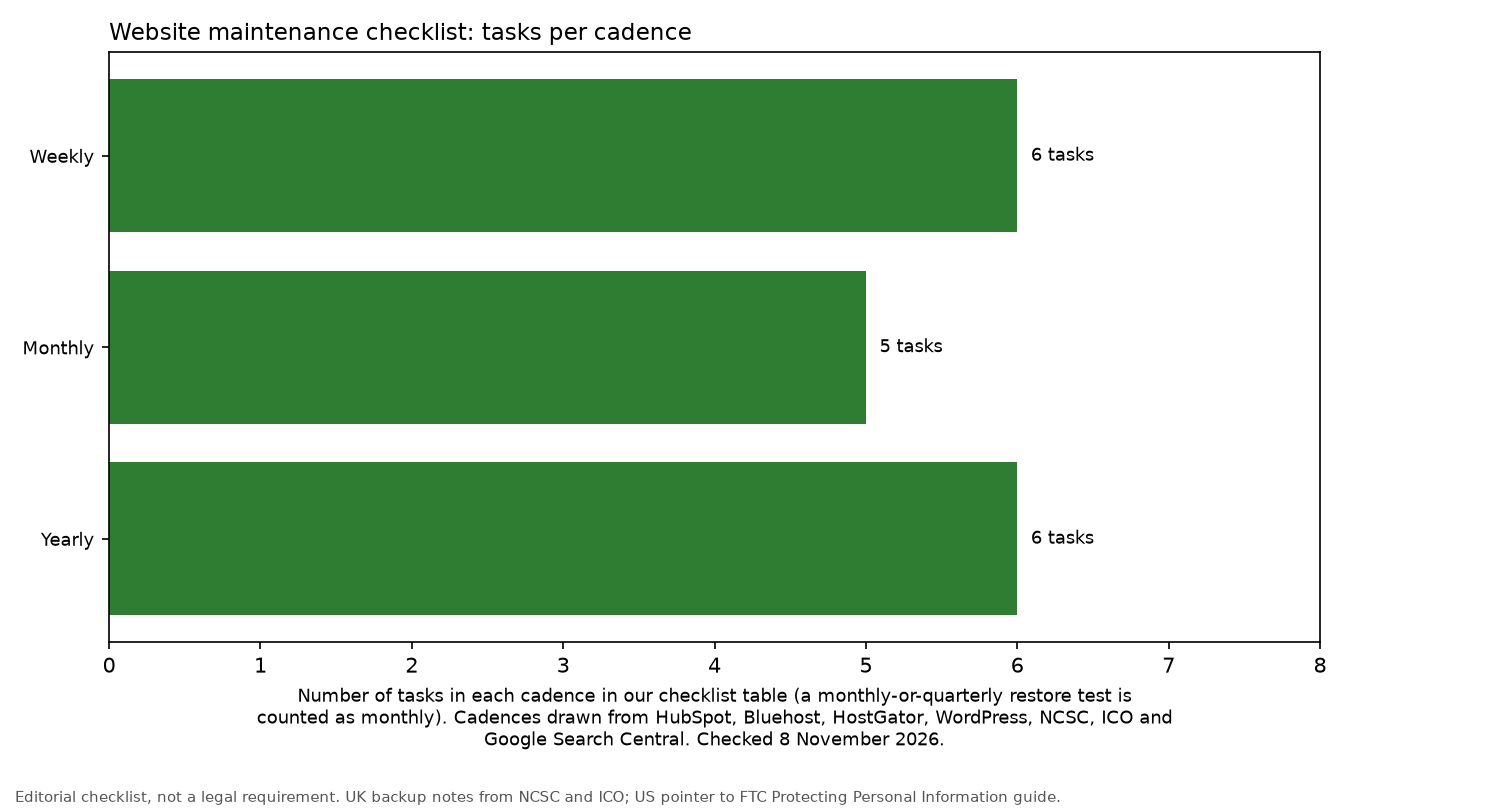
| Task | How often | Who usually does it | What "done" looks like | Deeper page |
|---|---|---|---|---|
| Check the site loads on phone and desktop | Weekly | Owner | Home, top pages and the contact page load without errors | |
| Test forms and checkout | Weekly | Owner | A test message arrives. A test order uses test mode, or a live test is cancelled or refunded the same day | |
| Confirm the latest backup finished | Weekly | Host or backup plugin; owner checks | A backup dated this week, stored away from the live site | Backup drives |
| Review uptime and security alerts | Weekly | Monitoring tool or host | No unresolved alerts | |
| Apply WordPress core, plugin and theme updates | Weekly, after a backup | Owner or freelancer; the platform on a hosted builder | Tried on staging when you have it, then the live site rechecked. Core folders left in place | |
| Clear spam comments | Weekly | Owner | Spam queue emptied or reviewed. Approved comments left in place | |
| Sweep for broken links | Monthly | Owner | No internal 404s | |
| Spot-check speed | Monthly | Owner or freelancer | Key pages opened in PageSpeed Insights. The score is a clue, not a pass mark | |
| Check Google Search Console | Monthly | Owner | No new indexing or security issues left unread | |
| Remove unused plugins or apps | Monthly | Owner or freelancer | Nothing left installed that the site does not use. Unfamiliar security or backup tools checked before removal | |
| Test a restore from backup | Monthly or quarterly | Owner or freelancer | A file or a copy restored on staging, or in a separate folder, and checked. The live site was not overwritten | NAS |
| Renew domain, hosting, SSL and licences | Yearly | Owner | Auto-renew on, payment card valid, and the certificate date still in the future | |
| Review who has admin access | Yearly, and when someone leaves | Owner | Old accounts suspended or removed. At least one owner login still works | |
| Review 2-step logins | Yearly review | Owner | Host, registrar, CMS and email use a second step where the service offers one. Recovery codes stored offline. The last working login was not removed first | Security keys |
| Review privacy policy and terms | Yearly | Owner with an adviser | Policies match what the site collects. This page is not that legal review | |
| Audit plugins or apps | Yearly | Owner or freelancer | Each one still needed, still maintained, and safe to update on staging | |
| Audit content | Yearly | Owner | Out-of-date pages updated or removed |
Weekly tasks
Check the site on a phone and a laptop. Open the home page, the pages people use most, and the contact page. Click through them. A check that only opens the homepage can miss a broken contact form.
Test forms and checkout. HubSpot suggests weekly testing as a starting point. Send a test enquiry and confirm it arrives, including the spam folder. If you sell online, use the payment provider's test mode where it has one. If you place a live test order, cancel or refund it the same day so it is not left as a real sale. Do not type a customer card number into the form as the test.
Confirm the latest backup finished. Open the host's backup screen or the backup plugin's log. A job that failed overnight can leave you thinking the site is protected. The copy needs a date from this week, and it needs to sit somewhere other than only on the live site.
Read the alerts. HubSpot suggests an uptime monitor that checks the site and sends an email or text when it fails. Read those alerts. Refreshing the homepage yourself is not the same check. Clear an alert only after you know what it was.
Back up, then update. WordPress's updating guide says to back up first and to check that plugins and themes work with the version you are installing. There isn't one update order that works for every site. On most sites that can update in one click, minor and security releases can install in the background. A major feature release still needs the Update Now click.
Use a staging copy for that click when the site takes orders, or when you are applying a batch of plugin and theme updates. Then open the live home page, a busy page and the contact form. The weekly task is the Updates screen or the host's updater. Do not delete wp-admin, wp-includes or wp-content, and do not paste shell or FTP steps, as the way to update. Those steps appear in WordPress's manual recovery notes for a failed update. They are not a routine. If the site stays on a maintenance screen, use the host's support or that failed-update note. Do not keep deleting files until the screen goes away.
Clear spam, and leave real comments. Empty the spam queue or approve what you want to keep. Do not turn comments off for the whole site as the weekly job, and do not delete approved comments in bulk.
Hosted builders still need a look. Squarespace, Wix and similar services apply platform patches. You still test forms, apps and content. You do not get a WordPress plugin list, and you also do not get a free pass on a copy of anything you would struggle to rebuild. Ask the provider what a restore includes and how long it takes.
Monthly tasks
Broken links. HubSpot suggests a monthly check as a starting point. A smaller site may not need it that often. The aim is no internal 404s. An external link that a supplier has moved can wait for the content audit if the page still makes sense.
Speed. HostGator suggests checking speed once a month with Google's PageSpeed Insights. Check the home page and one or two pages that matter. A score is a clue about those pages. It is not a pass mark for the business, and it is not a security verdict.
Search Console. Google says you do not need to sign in every day, because Search Console emails you about new issues. A check about once a month, or after a content change, matches Google's Search Console start guide. Look for new indexing problems and security issues. Do not use the Removals tool as a routine tidy-up. Google says a successful removal lasts about six months.
Plugins and apps. Look through what is installed and remove anything you no longer use. If you are unsure, deactivate it on the staging copy and recheck the pages before you delete it. Do not remove a security or backup plugin because the name is unfamiliar. Confirm what it does first.
Restore test. The NCSC says you need to know how to restore a backup, and to check that the copy contains the data the business needs. Do that on a staging site or in a separate folder. Do not restore over the live site to see if the backup works. A finished backup job is not the same as a copy you have opened. If the host has no staging tool, restore one file you recognise, or a database export, somewhere that is not the live site, and open it. On a shop, check that a recent product or order is in the copy. The NAS guide is about the storage hardware, not a restore procedure.
Yearly tasks
Renewals. HubSpot notes that a domain needs renewing at least once a year. Bluehost also includes the certificate, hosting and tool subscriptions. Turn auto-renew on and check the payment card is still valid. Many hosts renew the TLS certificate for you. Confirm the expiry date is still in the future. Do not replace the certificate by hand, and do not turn HTTPS off, unless the host has told you the automatic renewal has failed.
Access. Review admin users for the website, the host, the domain registrar and email. The ICO says to suspend someone's access when they leave, and when they are away for a long time. Remove or suspend old accounts. Keep at least one owner login that you have just used. Do not delete your only admin user as part of the tidy-up.
Policies. Bluehost and HostGator suggest reviewing the privacy policy and terms each year. HostGator also suggests a lawyer checks them. The test is whether the text matches what the site actually collects. This checklist is not that legal review, and it does not update the policy for you.
Audits. HubSpot suggests a yearly plugin audit, and a content review once or twice a year. For each plugin or app, decide if it is still needed and still maintained. Retire abandoned add-ons on staging before you remove them from the live site. Update or remove pages that name old prices, old staff or old offers.
Backups: UK and US notes
The steps for a website copy are in how to back up a website. These are the points that change the checklist. They are not a full backup design.
UK
The NCSC tells small organisations to keep a copy of the data the business needs, and it names the website among the examples. A USB stick or external drive should not stay plugged in when you are not using it, because malware on the computer can reach a disk that is still connected. The NCSC also suggests considering two copies, one online and one on a device, and turning on 2-step verification for online backups. That "consider" is a tip, not a statute.
The ICO says to back up regularly, to keep an external device somewhere other than the main workplace, to encrypt it, and to check the backup works. It also says the backup should not stay connected to the live data, so malicious activity does not reach it. The same page says that, because of changes in the Data (Use and Access) Act, the guidance is under review and may change. Read the current page. The Act amends UK GDPR. It does not replace it, and this checklist is not a reading of the Act.
Unplug the spare USB disk. Do not read that as an instruction to disconnect the only online copy and leave the site with nothing. A NAS that stays on the network is a different setup. It needs its own logins and its own updates. It is not a USB stick you should pull out every evening.
US
Backup and personal-data duties differ by state and by sector, including health and payments. They are not set out on this page. The FTC's Protecting Personal Information guide sets out five principles: take stock, scale down, lock it, pitch it and plan ahead. Use it as a starting point. It is not a finding that this checklist meets a state's law, and the filename on the FTC site keeps an old spelling of "protecting".
For an offline copy, see the guides to the best external hard drive for business backup and the best encrypted external hard drive. The encrypted-drive guide is about keypad and password hardware. It does not mean a listed drive satisfies the ICO. A UPS for a small office can keep a NAS running through a short power cut. That is a hardware note, not a backup test.
Logins and recovery
One lost login can undo the rest of the list. The ICO says to consider multi-factor authentication where possible. It does not say to turn off every password today.
Review the host, the registrar, the CMS and email once a year, and when someone joins or leaves. Turn on a second step where the service offers one. Save the recovery codes offline before you close the setup screen. Sign in with the new method once before you remove any older method. Do not turn off the last working login until that check has succeeded.
A hardware security key is one strong option for the host, the registrar and the CMS. The security key guide compares models. The NCSC describes FIDO2 authentication as one of the most secure usable forms of multi-factor authentication. You do not have to move every account onto a key in one afternoon.
Who should do the work?
- Owner: weekly checks, form tests, renewals and the access review.
- Freelancer: updates on a complex WordPress site, the staging copy, restore tests and the plugin audit, if you are not confident with that work.
- Host or platform: server patches, and platform updates on a hosted builder. Ask, in writing, what the plan includes. Content, forms and access reviews usually stay with you.
FAQ
- How often should I maintain my website?
- Run the short checks weekly. Check links, speed and Search Console monthly, and test a restore on a staging copy monthly or quarterly. Review renewals, access and policies once a year. A busy shop should take the more frequent end of each range.
- What should I check weekly, monthly and yearly?
- Use the table. Each week, confirm pages load, test forms, confirm a backup finished away from the live site, read alerts and apply updates after a backup, using staging when you have it. Each month, check links, speed, Search Console and unused plugins, and restore a copy somewhere that is not the live site. Each year, review renewals, admin access, 2-step logins, policies and the plugin and content audits.
- Do Squarespace or Wix sites still need maintenance?
- Yes. Squarespace and Wix apply their own platform patches. You still test forms, keep content current, renew the domain and review who can log in. Ask what a restore includes.
- How often should I back up a small-business site?
- HubSpot suggests daily or weekly backups. Bluehost suggests weekly backups. The NCSC says to back up the data the business needs, including the website, and to know how to restore it. A finished backup job is not a restore test.
- What does done look like for updates and backups?
- Updates have been applied, on a staging copy first when you have one, and the live site has been rechecked. A backup dated this week is stored away from the live site, and you have restored a copy on staging or in a separate folder at least once. That is an editorial standard. It is not a compliance certificate.
- Who should do the work, the owner, a freelancer or the host?
- Owners can run the short weekly checks. A freelancer can help with updates, staging and restores on a more complex WordPress site. The host looks after the server. Content, forms and access remain with you unless the contract says otherwise.
More from Site Nurturing: Maintenance · Backups and security · Backup drives · NAS · UPS · Security keys · How we review.