
How to Back Up a Website Properly: the 3-2-1 Rule
How to back up a website: the 3-2-1 rule in plain English, what a host does and does not cover, plus a plan by site type and a restore checklist.
To back up a website properly, keep three copies on two different types of storage, with one copy stored away from your hosting account. Every copy must include both your website files and its database. This is the 3-2-1 rule.
For most small firms, that means the live website, an automated backup from the host or a plugin, and an independent copy you control. The third copy could be in cloud storage or on a drive in the office.
You also need to test a restore. Until you have successfully restored a backup, you cannot be sure it will work when you need it.
This guide draws on Zelvorm's website backup strategy, Bluehost's guide to shared hosting backups, ChecklistLab's website backup checklist, iFastHosting's 3-2-1 explainer, the WordPress.org backup handbook and the NCSC small organisations guide. We have not tested these hosts' backup tools or the hardware below ourselves, so check your own host's documentation as well.
The short answer
- 3 copies: your live website and two separate backups.
- 2 storage types: keep copies on different systems, such as your host's server and cloud storage.
- 1 off-site: store at least one copy with a separate provider, using separate logins.
- Back up files and the database. WordPress.org says both are needed to restore a typical WordPress site.
- Test a restore on a staging site rather than your live website.
We may earn a commission if you buy through links on this page. It never changes our verdicts. How we review.
Samsung T7 Shield 2TB portable SSD
Amazon UK sometimes fills this listing through Amazon Global Store, which can add import charges, so check the seller and any import charges at checkout.
What your host does and does not cover
Most hosting companies provide automated backups. They are useful, but relying on them alone leaves gaps.
Bluehost's guide explains several limitations that apply to other hosts too:
- Restore points are limited. Many hosts retain only a few backups, replacing older versions as new ones are created. Bluehost's Basic Weekly Backup keeps just one restore point at a time.
- Email may be missing. A website backup might include your files and database but leave out your email mailboxes.
- Access can vanish. If your hosting account is suspended or closed, you could lose access to its backups. Bluehost describes its backup service as a courtesy and makes customers responsible for their own files and data.
- Big accounts can fail. Bluehost refers to cPanel documentation warning that backups may fail when accounts are close to or over their storage quota.
As iFastHosting points out, saying "My host backs it up" does not mean the same thing as "it is backed up".
A backup held by your host depends on that hosting account remaining accessible. If something happens to the account, the backup could become unavailable just when you need it.
How to back up a website: step by step
- Decide how often. Zelvorm recommends backing up as frequently as your website changes. Always make a backup before updates, plugin installations or major changes.
- Turn on automated backups. Set these up through your hosting control panel or a backup plugin. This gives you copy two.
- Check what is included. Make sure the backup covers files, the database, uploads and configuration. Zelvorm also recommends saving DNS records to help rebuild the site quickly, along with content stored in third-party tools your website relies on.
- Add an independent off-site copy. Send backups to cloud storage you control, with a separate provider. iFastHosting suggests using a tool such as
rcloneto automate scheduled transfers. This becomes copy three. - Keep a local copy too. Download a backup to an office drive or NAS. Bluehost's approach to 3-2-1 uses a computer or external drive as the second type of storage.
- Separate the credentials. Zelvorm recommends different logins for hosting and backup storage. That way, someone who compromises your hosting account cannot also delete your backups. Enable two-factor authentication, ideally using a security key.
- Encrypt anything with personal data. Both Zelvorm and ChecklistLab recommend encrypting backups containing customer details, orders or form submissions.
- Test a restore. Follow the checklist below to check that your backups can actually be recovered.
Backup plan builder
Choose the row that best describes your website.
The suggested frequencies come from Zelvorm. The retention periods follow its example of keeping daily backups for a month and monthly backups for longer. Bluehost also notes CISA's advice to maintain the ability to roll back at least seven days.
| Site type | How often | Keep | Copy 1 | Copy 2 | Copy 3 | Restore test |
|---|---|---|---|---|---|---|
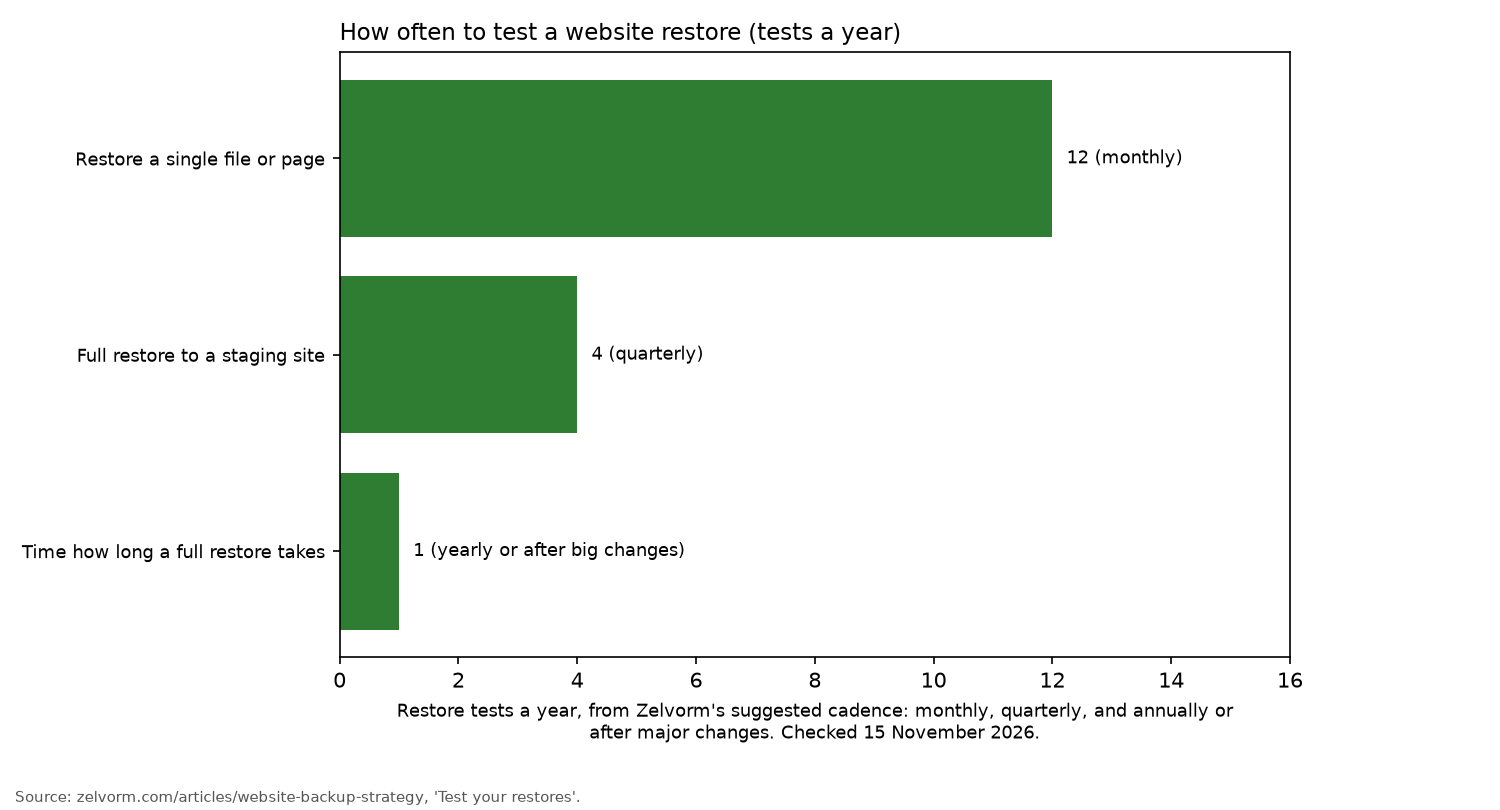
| Brochure site, updated monthly | Daily, plus before every update | Daily for a month, monthly for longer | Live site on your host | Host or plugin backup | Download to an office drive | Single page monthly; full restore to staging quarterly |
| WordPress blog, updated weekly | Daily | Daily for a month, monthly for longer | Live site | Plugin backup sent to cloud storage under separate logins | Weekly copy to a NAS or drive | Single post monthly; full restore quarterly |
| E-commerce shop or booking site | Daily, with more frequent database backups | Daily for a month, monthly for longer; never less than 7 days | Live site | Off-site backup service or cloud storage | Copy to a NAS in the office | Full restore quarterly, checking orders and accounts; timed restore yearly |
ChecklistLab makes an exception for sites that hardly change: weekly backups are suitable for static or rarely updated websites.
Printable restore-test checklist
Use this checklist when testing a backup. It is based on guidance from ChecklistLab, Zelvorm and Bluehost.
RESTORE TEST
[ ] Restore to a staging site or private copy, never the live site
[ ] Homepage and key pages load
[ ] Admin login works
[ ] Forms send, checkout works
[ ] Images and media appear
[ ] Recent posts, orders, bookings and user accounts are present
[ ] Note how long the restore took
[ ] Write down the restore steps and who can do them
[ ] Retest after changing host, backup tool or CMS
Where the hardware fits
Your third copy can be stored in the cloud. But many small firms also prefer having a physical backup in the office.
There are two common options.
A portable SSD for the office copy
A rugged portable SSD is the simplest way to keep a local backup. Download the latest copy, label it with the date and store the drive away from the computer.
According to its Amazon UK listing, the Samsung T7 Shield has IP65 water and dust resistance. It also supports password protection with AES 256-bit hardware encryption. Enable the password protection if the drive contains customer data.
For other choices, see the guides to external drives for business backup and encrypted drives.
Amazon UK sometimes fills this listing through Amazon Global Store, which can add import charges, so check the seller and any import charges at checkout.
Samsung T7 Shield 2TB portable SSD
A small NAS for scheduled copies
A two-bay NAS can collect scheduled backups in the office without someone having to remember to connect an external drive.
The Synology DS224+ is a two-bay model, and its listing highlights the available backup and restore tools. Check whether the bundle includes any drives before ordering. This listing is sometimes sold by a third-party seller. Check the seller before you order.
The NAS guide covers what to consider before buying.
Synology DS224+ 2-bay NAS
Common mistakes
- Every copy on the same server. iFastHosting explains that two automated backups held in the same account do not qualify as a second storage medium.
- Never testing. ChecklistLab describes restore testing as "the difference between a backup policy and a recovery capability". Having backup files is not enough if you cannot restore them.
- Only the latest version. Zelvorm warns that malware may remain undetected for days or weeks. Older backups give you a chance to recover a copy from before the infection began.
- Nobody owns it. ChecklistLab recommends assigning a named person to manage backups, sending alerts to a monitored inbox and checking the logs monthly.
- No written plan. Zelvorm suggests keeping a one-page document covering who to contact, where backups are stored and how to restore them.
For related advice, see Backups and security, Maintenance and the website maintenance checklist.
FAQ
- What is the 3-2-1 backup rule?
- It means keeping three copies of your data across two types of storage, with at least one copy stored off-site.
- Does my host back up my website?
- Most hosts provide automated backups, but these can have limitations. Some keep only one restore point, exclude email or become inaccessible if your account is suspended. Keep an independent copy of your website as well.
- How often should I back up my site?
- Zelvorm recommends backing up as often as your website changes. For most active sites, that means daily backups, with more frequent database backups for shops. Always back up before updates. WordPress.org's general recommendation, cited by Bluehost, is weekly backups for smaller sites and daily backups for busy ones.
- Where should I store website backups?
- Keep at least one copy with a separate provider, protected by separate logins. Ideally, also store a local copy on an external drive or NAS.
- How do I test a restore?
- Restore your backup to a staging site. Check that pages, logins, forms, media and recent orders are all working or present. Record how long the process takes so you have a clearer idea of how long an outage would last.
More from Site Nurturing: Backups and security · How we review